Create a Workload Cluster
Provision workload clusters for deploying applications and hosting environments.
Summary
Workload clusters run your applications and environments. Once you have a management cluster provisioned, you can create multiple workload clusters to organize your infrastructure by environment, team, or purpose.
Prerequisites
- Platform Admin or Team Admin role
- A management cluster provisioned for your organization
- A cloud account configured in your organization
Clusters Page Overview
After your management cluster is provisioned, the Clusters page shows a graph view of your cluster topology with the management cluster and any existing workload clusters.
This image is automatically generated from Cypress tests.
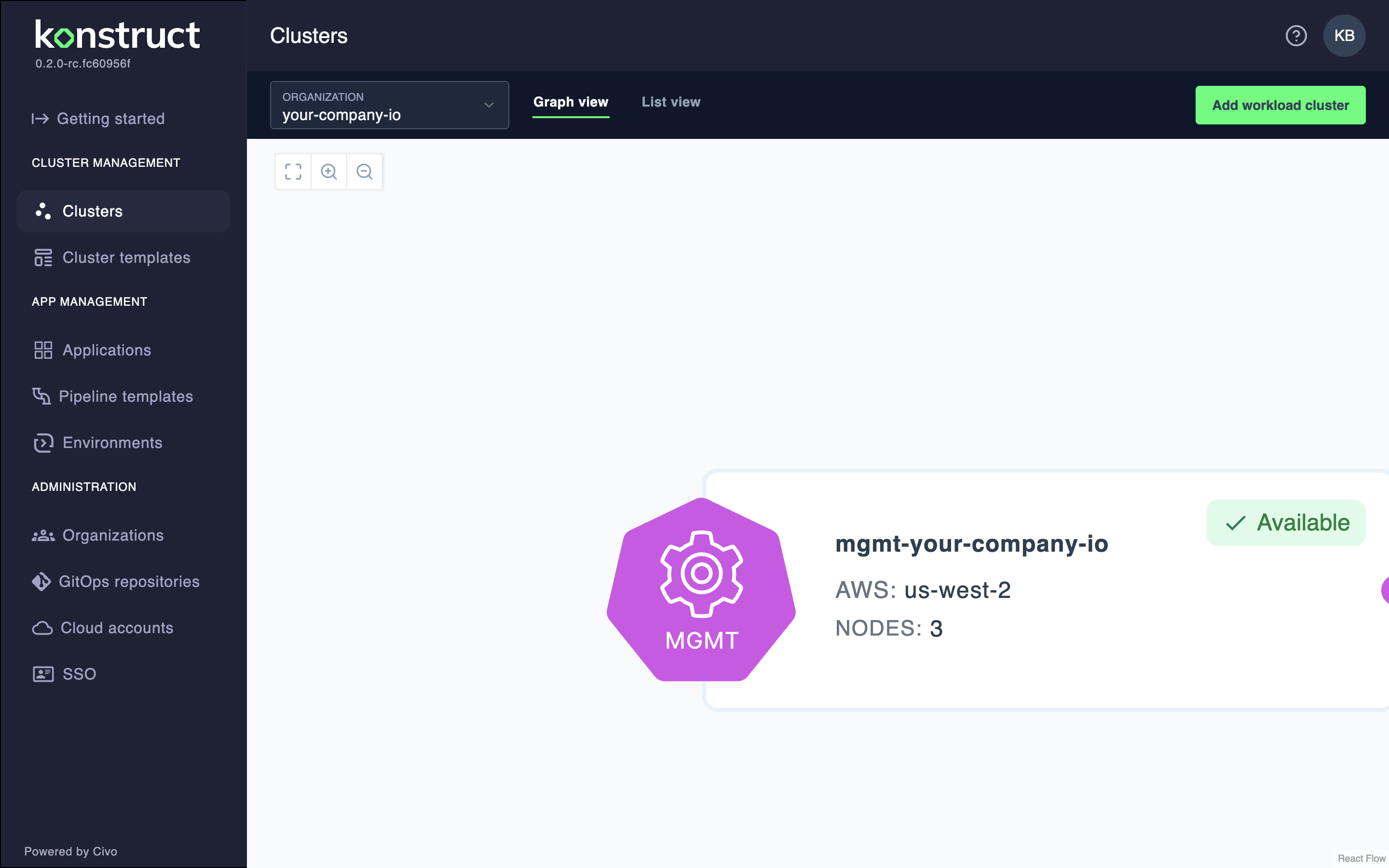
From this page, click Add workload cluster to create a new cluster.
Create Workload Cluster
-
Navigate to Clusters in the left sidebar
-
Click Add workload cluster
-
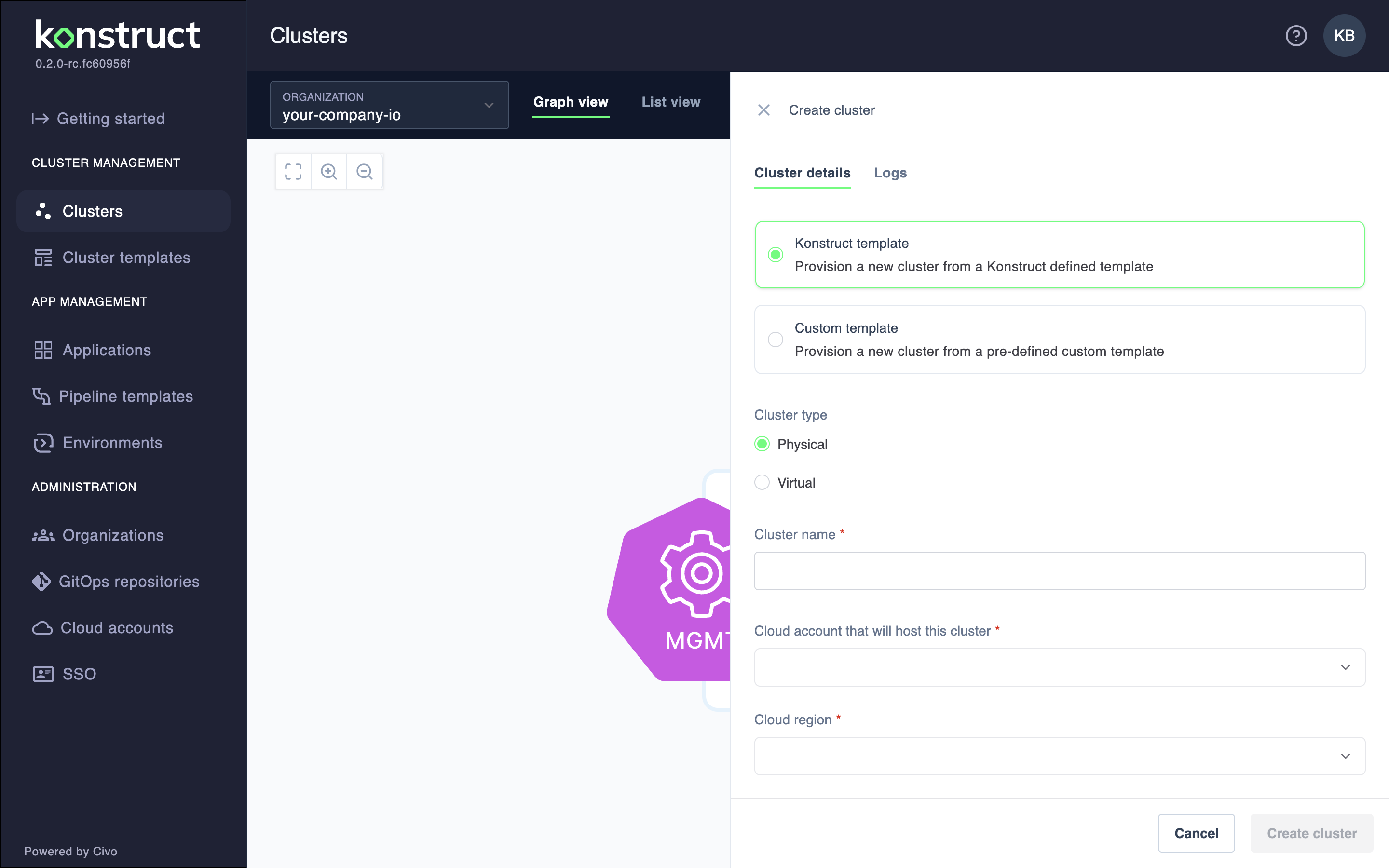
The cluster creation form opens in a side panel:
This image is automatically generated from Cypress tests.
Cluster Type
Choose the type of cluster to create:
- Physical: Full Kubernetes cluster with dedicated EC2 infrastructure
- Virtual: Lightweight virtual cluster that shares resources with other clusters (faster to create, lower cost)
Cluster Configuration
-
Configure the cluster settings:
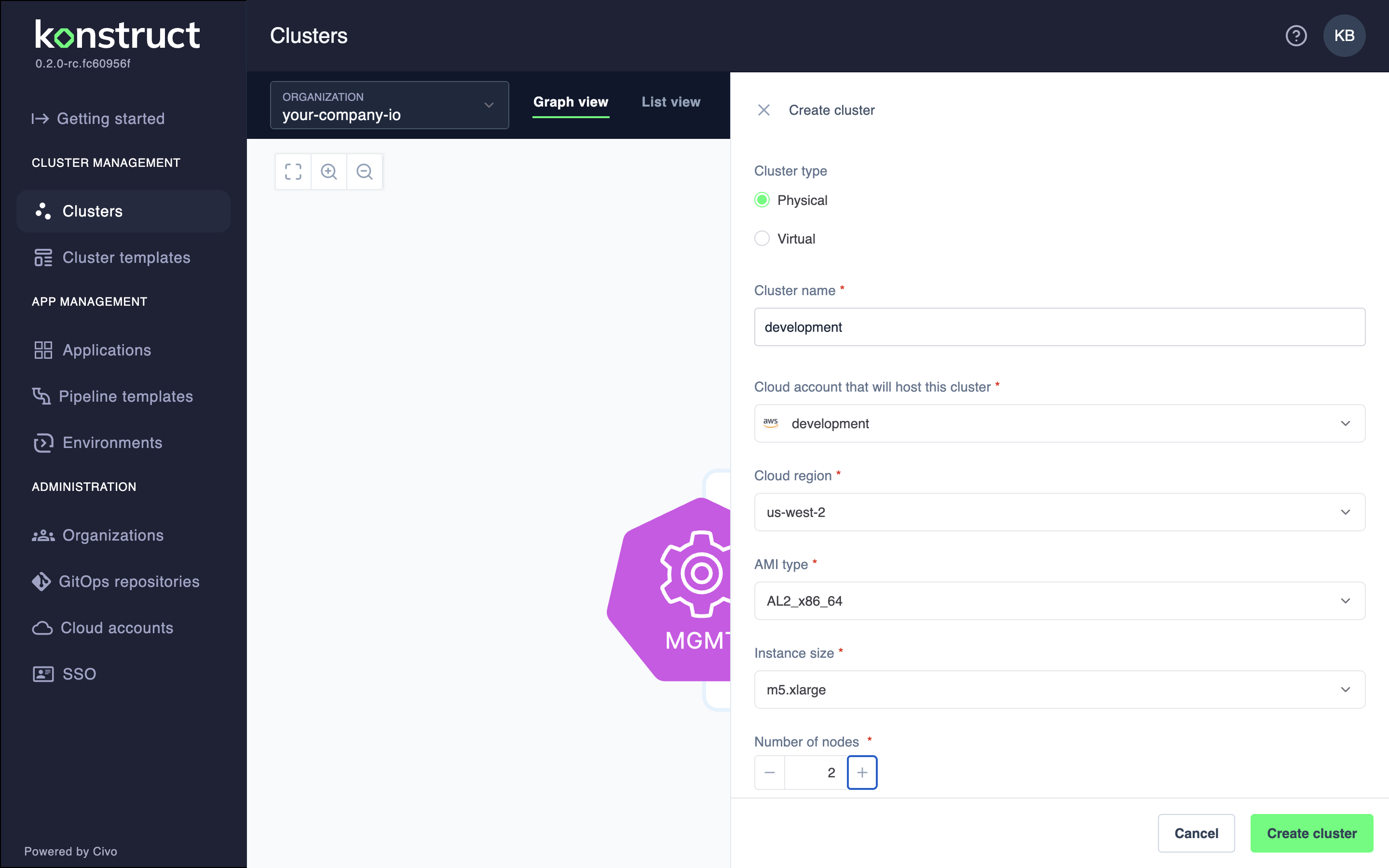
Field Description Example Cluster name Unique name for the cluster developmentCloud account AWS account to provision the cluster in developmentCloud region AWS region for the cluster us-west-2AMI type Amazon Machine Image type AL2_x86_64Instance size EC2 instance type for nodes m5.xlargeNumber of nodes Initial node count (minimum 2 recommended) 2 -
Optionally select an environment for the cluster to host
Example Configuration
Here's an example of a filled form for a development cluster:
This image is automatically generated from Cypress tests.
- Click Add cluster to start provisioning
Monitor Provisioning
After clicking Add cluster, the form closes and the Clusters page shows your new cluster in a provisioning state:
This image is automatically generated from Cypress tests.
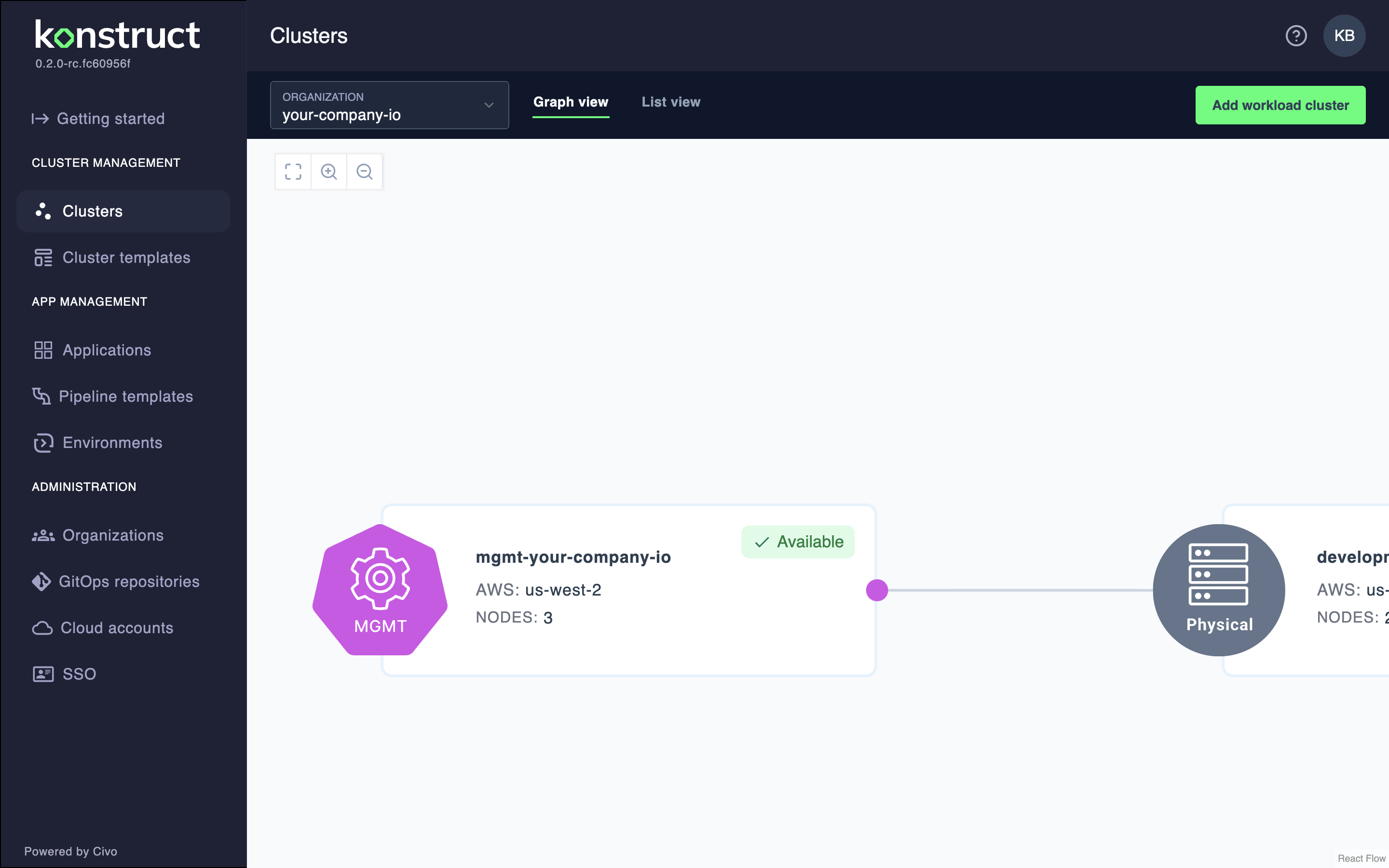
Workload cluster provisioning typically takes 15-20 minutes. You can:
- View provisioning progress in the cluster details panel
- Check the Logs tab for real-time provisioning output
- Monitor the cluster status in ArgoCD
Instance Size Guidelines
| Use Case | Recommended Instance | Notes |
|---|---|---|
| Development | m5.xlarge | Good balance for dev workloads |
| Staging | m5.xlarge - m5.2xlarge | Match production sizing |
| Production | m5.2xlarge or larger | Size based on workload requirements |
Important Notes
- Physical clusters require more resources and take longer to provision than virtual clusters
- Cluster names must be unique within your organization
- You cannot change the cluster type after creation
- The minimum recommended node count is 2 for high availability
What's Next?
After your workload cluster is provisioned:
- Register applications to deploy to your cluster
- Create environments to organize your deployments
- Set up pipeline templates for automated deployments